

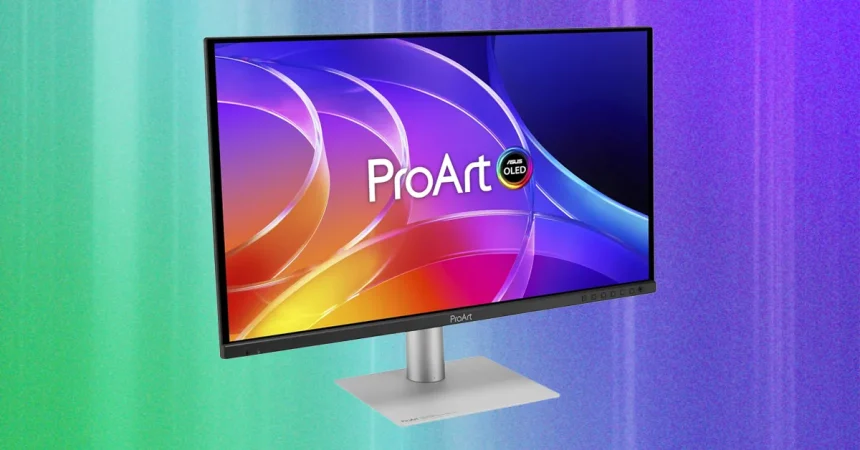
I’ve been living with the Asus ProArt PA279CDV on my desk for a while now, and the first thing I’ll say is that the design isn’t going to win any beauty contests. The side bezels are noticeably thicker than I’d like on a modern monitor, and the top and bottom bezels aren’t even the same width. That asymmetry is the kind of thing you don’t notice in a spec sheet, but once you’re staring at it for hours, it starts to feel a little off. It’s not a dealbreaker, but it does make the monitor feel less polished than other displays in this price range. That said, the stand is genuinely excellent, and it makes up for a lot of the aesthetic quirks. You get a full range of ergonomic adjustments: swivel, tilt, the ability to rotate into portrait mode, and a height adjustment range of about five inches. That’s more than enough to find a comfortable viewing position no matter your desk setup. I also appreciate the built-in cable management. The ports are down-firing, which means cables drop straight down and can be tucked away pretty cleanly, and the flat base is surprisingly compact. It doesn’t take over my whole desk, which is more than I can say for some massive monitor stands I’ve used. So while the front bezels aren’t perfect, the overall ergonomic story is a strong one, and I’d take a great stand over a few millimeters of bezel reduction any day.
When you flip the monitor around to the back, you’ll find a port selection that is clearly designed with productivity and workstation use in mind. There are two USB-C ports back there, but don’t assume they’re interchangeable, because they’re not. One is a USB-C 3.2 port with DisplayPort Alt Mode, and it delivers up to 96 watts of power to your laptop. That’s a big deal. It means if you have a compatible laptop, you can connect a single cable for video, data, and charging, and you don’t need to keep another bulky charger on your desk. The other USB-C port is also USB-C 3.2, but it’s specifically for the KVM switch feature. If you work with two different PCs, you can connect both to the monitor and use its built-in KVM to switch between them without constantly swapping cables or fiddling with a separate switchbox. The nice thing is that Asus labels each port clearly, so you don’t have to guess which one does what. I still had to pause for a second, but it’s straightforward enough once you read the little markings. Beyond the USB-C ports, there are two USB-A ports for accessories, a headphone jack, HDMI 2.1, DisplayPort 1.4, and even a DisplayPort Out so you can daisy-chain a second monitor. For someone trying to build a clean, efficient workstation, this is a really solid array of connections. It covers almost every possible need, whether you’re hooking up a modern laptop, an older desktop, peripherals, or a secondary display.
The controls and on-screen menu are another area where the PA279CDV has its own personality. Everything is located on the right side of the front panel, which is more or less standard these days, but Asus has chosen to give you a joystick plus five separate control buttons, along with a power button. I have to admit, I’m usually a fan of just a single joystick for simplicity. Fewer controls often means fewer things to fumble with, especially when you’re trying to adjust settings quickly. But after spending time with this monitor, I’ve warmed up to the button arrangement. Once you learn which button does what, the physical shortcuts make it faster to switch inputs or jump straight into brightness adjustments without navigating through layers of menus. The menu itself is deep, undeniably deep. There are numerous color modes, a lot of picture-quality tweaks, and plenty of calibration options for people who care about color accuracy. It’s the kind of menu that can feel overwhelming at first, but it’s also exactly what you want if you’re using the monitor for creative work and need to dial in a specific look. If fiddling with physical buttons isn’t your thing, there’s also a Display Widget application that works on both Windows 11 and macOS. With that software, you can control all these settings from your computer instead of poking around the monitor’s OSD. That’s a nice touch, and it makes the monitor feel more modern and integrated into your workflow. It’s not the simplest control scheme I’ve ever used, but it’s flexible, and that flexibility matters for the kind of person who buys a ProArt monitor in the first place.
Let’s talk about entertainment, because a monitor doesn’t live on work alone. The PA279CDV includes built-in speakers, but honestly, they’re pretty bad. That’s disappointing, especially for a monitor that many people will use for watching movies or playing games in the evening. The sound is thin, lacking in bass, and generally not something you’d want to listen to for an extended period. If you’re watching a movie, you’re absolutely going to want to use a pair of headphones, external speakers, or a soundbar. The speakers are fine for basic system notifications, the occasional YouTube clip where you just need to hear a voice, but that’s about it. It’s one of those areas where the monitor was clearly designed with productivity in mind first, and entertainment second. For comparison, I’ve recently used the Dell 32 Plus QD-OLED, and its built-in speaker setup is genuinely good, with much fuller audio and a richer soundstage. That makes the gap here even more noticeable. So if you’re someone who values a clean, all-in-one setup without extra speakers cluttering your desk, the sound situation on this Asus might be a reason to think twice. It’s not a catastrophic flaw, but it is a reminder that the monitor’s core strengths lie in its image quality and connectivity, not in its audio hardware. Personally, I’d rather have a monitor like this with mediocre speakers and great visuals than the other way around, but it’s still worth knowing before you buy.
Now we get to the part that actually matters most: the display performance, particularly in HDR. The PA279CDV is an OLED monitor, and OLED technology has a unique advantage that sets it apart from traditional LCDs. Because each individual pixel can turn itself off completely, the display can produce absolutely perfect black levels. That’s why OLED monitors are so beloved for HDR content; the contrast between the darkest darks and the brightest brights creates a stunning, lifelike image. But black levels alone aren’t enough. For a monitor to deliver genuinely impressive HDR, it also needs to get bright. This is where a lot of OLED monitors fall short, because they struggle to produce high luminance levels without burning out pixels. I ran a series of HDR test patterns on this Asus, and the results were quite strong. In a small 1 percent window, I measured a peak brightness of 1,038 nits. In a slightly larger 4 percent window, it hit 917 nits. Those numbers are far higher than what many competing OLED monitors can manage, and they translate into a real sense of visual punch when you’re watching an HDR movie or playing a bright, colorful game. Highlights pop, specular reflections look vivid, and the image overall feels more dimensional and dynamic than on dimmer displays. To put that in perspective, the Apple Studio Display XDR, which I consider one of the best HDR monitors around, delivered 1,905 nits in a 25 percent window in my testing. That’s an impressive number, but it’s also an unfair comparison in a way, because the Apple monitor costs more than $3,000. The Asus is a far more affordable option, and for its price, the HDR performance is genuinely impressive. It won’t dethrone the very best in the world, but it doesn’t need to. It’s bright enough to make HDR feel meaningful, and combined with OLED’s perfect blacks, the overall image quality is excellent.
So where does that leave the Asus ProArt PA279CDV as a whole? It’s a monitor with a clear identity. It’s built for creative professionals and people who need a versatile, high-quality display for serious work. The port selection is excellent, with everything from high-power USB-C to daisy-chaining capabilities. The stand is comfortable and adjustable, the menu system is deep enough for fine-tuning colors, and the HDR brightness is strong for an OLED panel. But it’s not without its compromises. The bezels are asymmetrical and a bit thick, which might bother you if you’re picky about aesthetics. The built-in speakers are weak, so you’ll want to plan for external audio. And the control scheme takes a little getting used to, even if it becomes second nature after a while. For me, the positives outweigh the negatives. The monitor’s core job is to display images, and it does that beautifully, especially when you feed it HDR content. If you’re a video editor, a photographer, a developer, or just someone who spends all day in front of a computer and wants a screen that treats your eyes well, this Asus is worth serious consideration. It’s not the absolute most gorgeous monitor on the market, and it doesn’t have the best speakers, but it delivers where it counts. It gives you a flexible, feature-packed workstation display with OLED-quality contrast and a level of HDR brightness that makes your content look alive. That’s a combination that’s hard to beat at this price, and it makes the minor annoyances easy to forgive.