
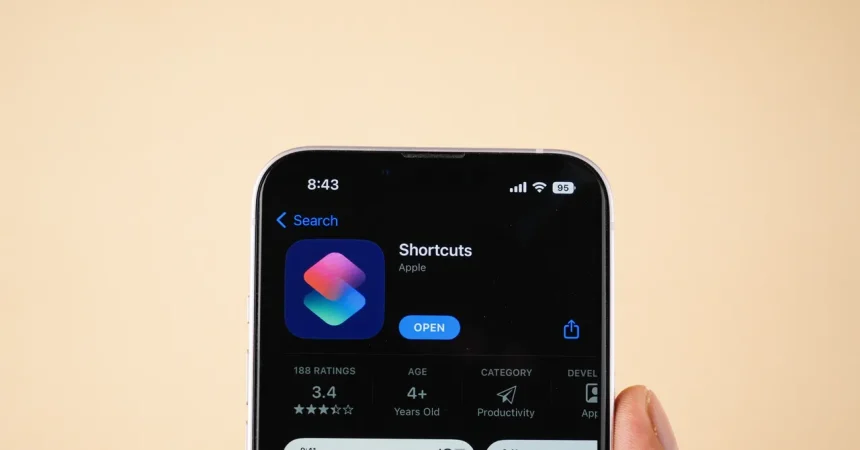
Full disclosure: I’ve been carrying an iPhone around for years, and until the iOS 27 beta, I had never really used Apple’s built-in Shortcuts app. I had opened it a few times, but I always closed it after a few seconds, defeated by the overwhelming collection of triggers, actions, variables, and little colored blocks that looked like they belonged in a programming classroom. I knew automating tedious tasks sounded nice in theory, but the effort required to thread everything together felt like too much work for someone who just wanted my phone to handle a few small things for me. The iOS 27 beta changed that in a way I didn’t expect. The headline feature this fall might be Siri AI and its new stand-alone app, but the feature that has me most excited actually lives inside Shortcuts. It’s called “Describe a Short,” and it lets you describe what you want your phone to do in ordinary, conversational English. You don’t have to know what an action block is or how to set up a conditional trigger. You just say something like, “When I open Instagram, ask me if I really want to use it,” and the app builds the automation for you. It felt like talking to a friendly concierge instead of writing a script. The first time I watched the app generate a workflow from my own casual sentence, I honestly started humming “Zero to Hero” from Disney’s Hercules in my head. It was that much of a moment. The beta wasn’t perfect—I hit a few glitches where the generated automations didn’t come out quite right—but I was still able to tinker with them by sending follow-up prompts. The manual scripting tools remain for people who want them, but they’re no longer the only way in. After an afternoon of playing around, I had set up a handful of automations that actually serve me every day, and I finally understood what all the hype was about. It was like my phone finally spoke my language, and I’ve been humming that Disney song ever since.
One of the first shortcuts I made was also the simplest, and it has become my favorite. I have a habit of closing Instagram to focus on something else, only to reopen it seconds later without really thinking. It’s the kind of mindless scrolling loop that drives me crazy, because I know I don’t want to be in the app, but my thumb still keeps going. I asked “Describe a Short” to create a shortcut that triggers every time I open Instagram. Now my iPhone pops up a notification that asks, “Do you really want to use this app?” If I tap yes, the notification disappears and I can scroll away. If I tap no, the phone closes Instagram and locks the screen. That moment of forced choice is surprisingly powerful. It doesn’t block the app entirely or give me a lecture, and it doesn’t require me to set a screen time limit that I’ll probably ignore. It just inserts a tiny pause before I default to the same old behavior. I’ve already caught myself tapping no more than I expected. The second shortcut came out of living in California, where checking the air quality before heading outside has become as normal as checking the weather. I used to manually look at the Air Quality Index every morning and try to remember what the numbers meant. Now I have a shortcut that runs every day at 6:40 a.m., checks the local weather, looks at the air quality, and sends me a notification. If the AQI is above a certain threshold, I get an alert to grab a mask or reconsider my plans. If it’s fine, I get a little all-clear that lets me leave without worry. It feels like having a tiny, concerned environmental health assistant in my pocket, and I didn’t have to write any of the logic myself.
Location-based triggers are another thing I didn’t know about, and they’re incredibly useful. I have a tendency to walk out of my apartment with a low battery, and then I spend the rest of the day anxiously watching the percentage drop and hoping I don’t get stranded. To fix that, I created a shortcut that triggers whenever I leave home. It checks my phone’s current battery level, and if it’s below 50 percent, it sends me a friendly notification reminding me to grab a portable charger. That quick trip back inside is a lot better than being miles from home with a dead phone and no way to get directions. The notification is only a minor prompt, but it has already saved me from a few stressful situations. I also discovered that shortcuts can talk to each other, which opened the door to something more ambitious. I wanted to keep a watering log for my plants without downloading another app or committing to a daily journal entry. So I created a shortcut that, whenever I run it manually, grabs the current date and time and appends it to a dedicated note in my Notes app. Then I added a second shortcut that runs every morning at 9:00 and checks that same note to see if it was modified within the last week. If there hasn’t been a new entry, I get a reminder to check on the plants. The first shortcut is one I tap on my home screen, because I added it as an icon, so watering the plants feels like a satisfying little button press. The second shortcut runs quietly in the background and nudges me when I’ve been neglecting my responsibilities. Together, they turned a chore I used to forget into a two-part system that keeps me accountable without any real effort on my part.
The next two automations are more niche, but they prove that Shortcuts can adapt to the small habits that make up a daily routine. I am chronically online, and I take a lot of screenshots. In the past, I would save screenshots of articles, messages, and random social media posts, and then later, if I actually wanted the text from them, I’d have to open Photos, find the image, and use Live Text to copy the words. That process had enough steps that I often just let screenshots pile up and forgot about them. Now I have a shortcut that runs automatically whenever I take a screenshot. It pulls the text out of the image and copies it to my clipboard immediately. The moment I capture a screenshot of a recipe, a boarding pass, a confirmation number, or a funny text, the text is already there for me to paste wherever I need it. It removes a small layer of friction that I never realized was bothering me. The other automation is less about productivity and more about doing the right thing. I travel a lot without my partner, and I’m terrible about remembering to text her when I land. I get caught up in turning off airplane mode, checking notifications, gathering my bags, and then suddenly I’m in a taxi and I’ve forgotten to let anyone know I made it safely. So I asked Shortcuts to build an automation that sends a “just landed” text to her whenever I turn off airplane mode. The setup asked me to choose her contact and confirm the message, and that was it. Now, the moment my phone reconnects to the cellular network, it sends a quick message that she receives before I even have time to think about it. It’s a tiny gesture, but it solves a very real absent-mindedness problem and spares me from being the scattered traveler who makes loved ones worry.
The shortcut that required the most setup was also the one that gave me the most peace of mind. Because I work from home, I wear headphones most of the day, and I love listening to podcasts and music at high volume. The downside is that I often miss the doorbell or someone knocking on the door. It’s not just an inconvenience; it genuinely makes me anxious, because I worry about missing a package delivery or not responding when someone is trying to reach me. The fix involved a feature I had never used before: Sound Recognition in the iPhone’s Accessibility settings. This feature lets your phone listen for certain sounds, like a doorbell, a knock, a baby crying, glass breaking, or a fire alarm. It’s built into iOS, but by itself it only sends a notification, which isn’t enough when I’m wearing headphones and not looking at my phone. So I used Shortcuts to take that same sound recognition event and turn it into something more useful. I enabled recognition for Door Bell and Door Knock, and then I created a shortcut that triggers whenever the phone hears either sound. The shortcut’s entire job is to pause whatever is playing on my headphones. That means if someone knocks, my podcast suddenly stops, and I pull out my headphones just in time to hear the second knock or the doorbell. It’s not a complicated automation, but it had a huge impact on my anxiety levels. I can now work with music at full volume without constantly worrying that I’m ignoring the outside world. It also reminded me that some of the best shortcuts aren’t about complex workflows; they’re just about connecting features that already exist in iOS and making them respond in the way that fits your life.
Looking back, I’m amazed at how much my relationship with Shortcuts has changed. For years, I wrote it off as a tool for productivity nerds and people who enjoy wrestling with automation logic. I thought I didn’t have the patience or the technical skill to make it work for me. “Describe a Short” completely undermines that assumption. Instead of forcing me to learn the language of automation, the app learns what I want from a plain English sentence. I can say, “When I leave home, check my battery and remind me to bring a charger,” and it builds the workflow for me. If something isn’t right, I can send a follow-up prompt like, “Actually, only notify me if it’s below 40 percent,” and it adjusts. That conversational refinement is what made everything click for me. It turns what used to feel like a programming exercise into a collaboration between me and my phone. Of course, iOS 27 is still in beta, and I did experience some hiccups. A few automations were not perfectly structured on the first try, and I had to start over occasionally. But even the glitches taught me how the app thinks, and I never had to open a manual or watch a tutorial. The feature isn’t just about making Shortcuts easier; it’s about making automation feel truly accessible. My phone already knows where I go, what I do, who I text, and how I spend my time. With “Describe a Short,” I can finally tell it what to do with that information in a way that doesn’t require me to become a developer. When iOS 27 lands this fall, I hope other people who felt like I did give Shortcuts another chance. Start with one small, silly automation. Maybe make it ask you a question before you open a distracting app. Maybe make it remind you to charge your phone when you leave the house. You don’t have to plan every step of the logic. You just have to describe what you want, let the app build a first draft, and then tweak it until it feels right. It’s not magic, exactly, but it’s close enough to make me want to break out into song—and that’s coming from someone who had never even bothered to open the Shortcuts app before.